LokTV is packed with many amazing features, offering a massive database of regional and international movies as well as dramas that you can watch for free in HD quality. If you rely on it for your entertainment, this is a must-read guide for you, as most people don’t utilize this app and its services, and some features can be found deep inits setting, where many people don’t even try to go, so we’ll do this job for you and make it easy to for you dig deep into this app. Here we share some incredible tips and tricks to make your stream experience even better.
What is LokTV App
LokTV is one of the finest apps to watch dramas, films and TV shows of all genres from countries in Asia, Europe and South Africa. It works well on almost all devices, such as Android, TV and PC. It never leaves you hanging on the loading screen, as the app has 97% uptime. The simple, easy layout lets you browse through various genres or categories and find newly released content. It regularly keeps the content library updated and adds fresh content so you never run out of interesting shows to watch.
LokTV Tips for the Best Viewing Experience
Maximize your time on the LokTV app through the useful tips here, designed to elevate how you stream and explore content.
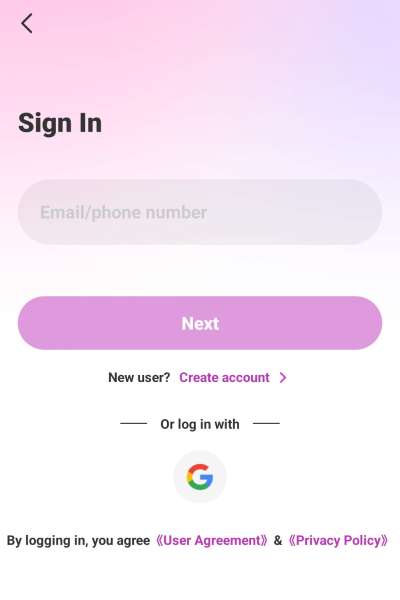
1. Log in to Unlock All Features
All the advanced settings and customization options are located in the ‘Me’ section of this app, found at the bottom right corner of the screen. However, the thing is that many features on this app are just for registered users. If you want a personalised suggestion of movies and shows on the home feed, you need to log in, as it will unlock content preference settings where you can input your liking in movies and dramas on which suggestions will be based.
You will be able to create a custom playlist, set a reminder for the upcoming episodes of your beloved series, report and issue, and many more, so make sure you log in to this app to unlock all these exclusive features. You can create an account using Email, social media nd Google account.
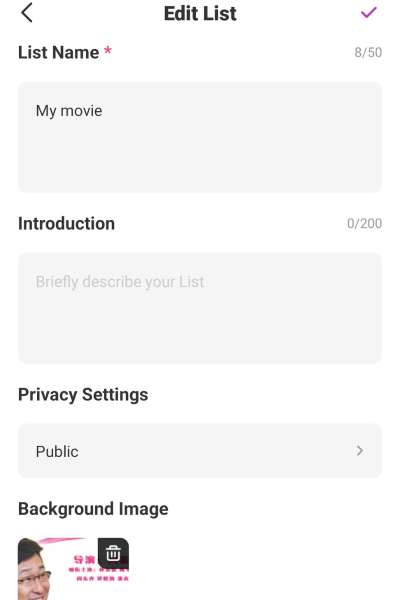
2. Create a Custom Watch list
LokTV allows you to create a watch list and give it a unique name you wish to make it easily identifiable. In that created watchlist, you can add a certain type of movie you like or would love to recommend to others or watch later during boring times. Go to the ‘Me’ section and tap My List. Now, create a list by tapping the plus (+) icon in the upper-right corner. You can give the list a name of your choice, describe its purpose with a short description, select a background image to decorate it, and set privacy settings to public or private, whatever you prefer. A public wishlist can be shared with others via a link so that you can spread your treasure of films and shows to your friends and family.
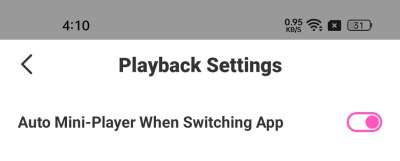
3. Enable Auto Mini Player
Remember, this feature works only if you have an Android 8.0 or above device. Enabling Mini Player mode, you will be able to run the video in the background and watch it througha floating player that you can drag anywhere on the screen and use other apps at the same time on the same device. To enable this, go to app settings, navigate to playback settings, and toggle the auto mini player on. You can also enable or disable the auto mini player for each video directly from the media player as well.
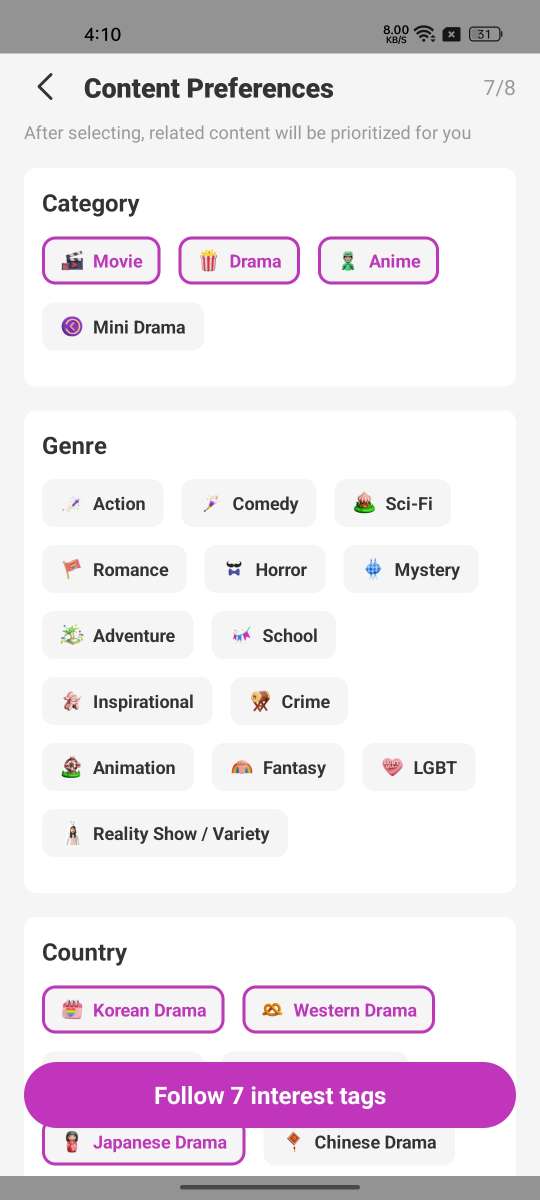
4. Select Content Preference
If you are logged in, you can find an option labelled content preferences in the settings of this app, which will show genres and types of content available on this app. Simply check the type of content and genre that you like the most, and the app will remember it and will prioritise your preference to always show relevant content on the home feed of this platform.
5. Switch to Dark Mode
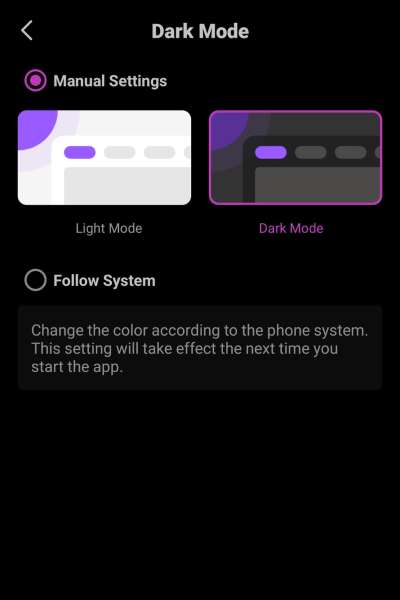
Dark mode is best for those who feel irritation in their eyes while watching content on a light mode screen. LokTV comes with the light theme by default but with the latest update, there is a new option has been added to switch to dark mode, which makes it look more sophisticated and is also useful for reducing eye strain and saving battery consumption (If your screen is AMOLED).
6. Cast to TV
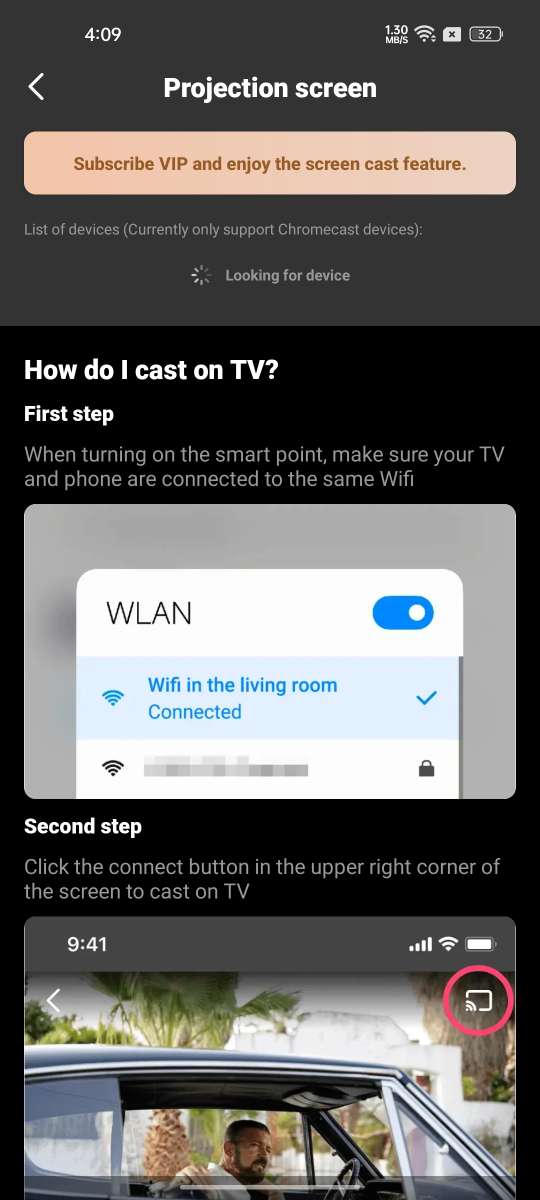
LokTV offers a Chromecast feature that lets you project your phone’s content onto your TV for a superior movie experience. To cast this app, ensure your phone and TV are connected to the same Wi-Fi network. Then, tap the Chromecast icon to check if your TV appears in the list. If it does, select it and enjoy high-quality viewing.
7. Capture Screenshots of any clip
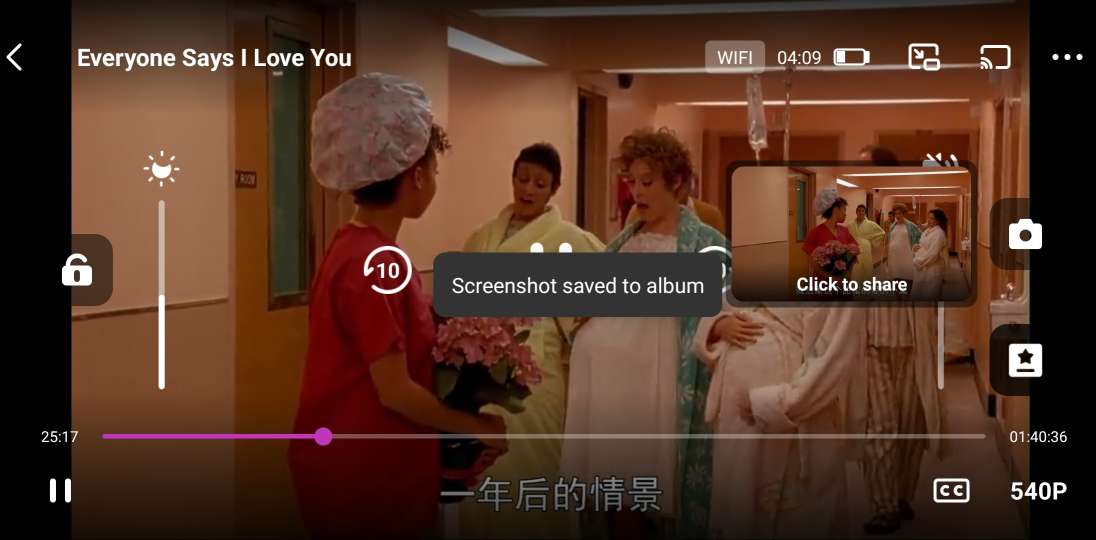
To capture a favorite moment or a scene from the video you’re watching on this app, there is a screenshot icon inside the video player of LokTV app that captures the current scene on the video and saves the picture on your device’s internal storage, accessible from the gallery app. To capture the screenshot, you have to play the video on full screen, then tap on the camera-shaped button when your desired scene plays. You can take a screenshot with the video paused.
8. Download Videos to Watch Offline
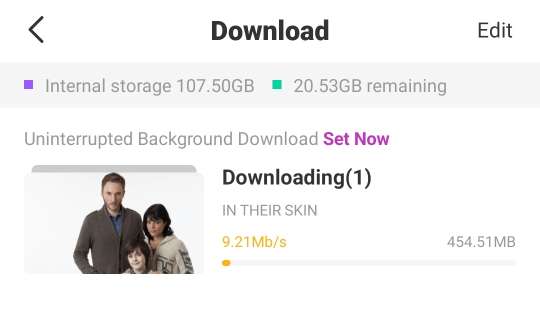
If you’ve used up your daily data or are in an area with weak internet, LokTV offers a download feature. You can save your favorite content to your device, and once downloaded, you will be able to watch the video later anytime without any need of internet or wifi connection. This is perfect for travelers or nomads.
LokTV is a dependable movie streaming platform that offers quick access to thousands of titles without subscription fees. After logging in, users can customize preferences, create watchlists, and enable the auto mini player. Its user-friendly interface, HD streaming, and extensive library ensure a smooth movie-watching experience.